

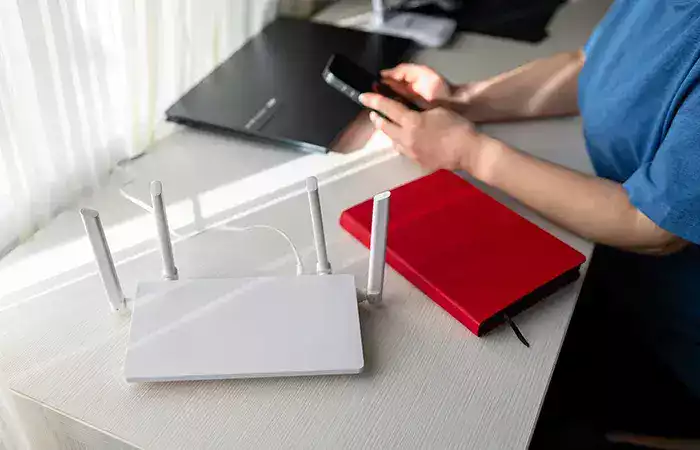
How WiFi works. You’re in the middle of a crucial Zoom call. Your boss is mid-sentence, and suddenly—freeze. The screen pixelates. The dreaded “Your Internet Connection is Unstable” warning flashes. You glance at the router, silently begging it to cooperate.
We’ve all been there. WiFi feels like a utility, as essential as electricity or running water. Yet unlike water flowing predictably through pipes, WiFi is a delicate dance of invisible physics. Understanding how WiFi actually works—and the specific reasons it sometimes crawls—empowers you to fix common problems yourself. No engineering degree required.
The Invisible Highway: Radio Waves, Not Magic
WiFi is not magic. It’s not some vague “cloud signal” beaming directly from space. WiFi is simply radio.
Translating Data into Waves
Your router takes data from the internet—a Netflix show, an email attachment, a voice call—and converts it from digital bits (1s and 0s) into electromagnetic radio waves. These waves travel through the air to your smartphone or laptop, which converts them back into data. When you send an email, the process reverses. Your phone talks back to the router using the same radio method.
The Frequency Bands: 2.4 GHz and 5 GHz
WiFi operates primarily on two frequency bands: 2.4 gigahertz and 5 gigahertz. Think of them as two different highways.
-
2.4 GHz: The older, longer-range highway. Its waves travel farther and penetrate walls more effectively. The trade-off? It’s slow and crowded. Microwave ovens, baby monitors, Bluetooth devices, and your neighbors’ routers all compete for space here.
-
5 GHz: The newer, wider highway. It carries much more data at higher speeds. The trade-off? Its shorter waves struggle with distance and solid objects. It’s fast in the same room but weakens significantly through walls.
Most modern routers are “dual-band” or even “tri-band,” broadcasting both simultaneously so your devices can intelligently switch between them.
What “WiFi 6” and “WiFi 7” Really Mean
When you see “WiFi 6” or “WiFi 6E” on a router box, that nomenclature refers to the generation of the IEEE 802.11 standard. WiFi 6 (802.11ax) introduced technologies like OFDMA, which splits channels into smaller sub-channels so multiple devices can communicate simultaneously without waiting in line. WiFi 7 goes further with 320 MHz ultra-wide channels, theoretically pushing speeds beyond 40 gigabits per second—faster than most wired connections. These standards aren’t just about raw speed; they’re about efficiently managing dozens of devices without congestion, much like the leap our guide on what 5G changes describes for mobile networks.
The Journey of a Data Packet: From Router to Device
Every time you click a link, your request is broken into tiny “data packets.” Here’s the journey one packet takes:
-
Modulation: The router converts the packet’s digital bits into a radio wave pattern. Modern WiFi uses a technique called Quadrature Amplitude Modulation, or QAM. WiFi 5 used 256-QAM, encoding 8 bits per transmission. WiFi 6 uses 1024-QAM, packing 10 bits into the same space—a 25% efficiency gain with no extra spectrum.
-
Transmission: The router blasts this modulated wave through antennas. Most routers use MIMO, or Multiple Input Multiple Output—multiple antennas working in parallel to send different data streams simultaneously.
-
Reception: Your phone’s internal radio receiver captures the waves through its tiny internal antennas, demodulates them back into digital data, and checks for errors.
-
Acknowledgment: Your phone sends a tiny acknowledgment packet back. If the router doesn’t receive it within a few milliseconds, it resends the original packet.
This entire exchange happens in microseconds, repeated millions of times for a single web page to load.
Why Your Internet Gets Slow: The 5 Hidden Culprits
Now for the part you care about. Why does a perfectly functional network suddenly crawl? The reasons are specific and, usually, fixable.
1. The Old Router Problem
Routers age, and not just physically. WiFi standards evolve. A router from 2018 might only support WiFi 5, which was designed for a household with maybe 10 connected devices. Today’s average home has 25-30 smart devices—phones, laptops, smart speakers, doorbells, thermostats, TVs—part of the growing web explained in our guide on how connected devices work. An older router’s processor and memory simply cannot efficiently schedule traffic for that many clients. If your router is more than three or four years old, it’s likely your primary bottleneck.
2. Channel Congestion: The Noisy Neighbor Effect
WiFi channels are shared airspace. If you live in an apartment complex, your router might be screaming on the same channel as seven other routers within 100 feet. All those overlapping signals create interference, forcing devices to constantly wait and retransmit. Switching your router settings from “Auto” channel selection to a less crowded channel (using a free WiFi analyzer app to identify it) can yield immediate improvements.
3. Physical Obstructions and Dead Zones
Radio waves hate three things: metal, water, and distance.
-
Metal: Refrigerators, filing cabinets, and even metal-stud walls can reflect or absorb WiFi signals, creating dead zones.
-
Water: The human body is about 60% water. A room full of people absorbs signal. Large aquariums are notorious signal killers.
-
Distance: Signal strength follows the inverse-square law. Double the distance, quarter the power. A router in the basement corner of a three-story house physically cannot reach the top-floor bedroom efficiently.
4. Bufferbloat: The Hidden Latency Killer
When your internet connection gets congested—say, someone’s uploading a 4K video while another person is gaming—your router’s buffer fills with queued packets. If the buffer is too large, packets sit waiting, causing massive latency spikes. Your connection speed might look fine on a speed test, but real-time applications like video calls and online games stutter. This phenomenon is called bufferbloat. It happens after your data leaves the router and enters the wider network described in our guide on how the internet works. Routers with “Smart Queue Management,” or SQM, solve this by intelligently prioritizing latency-sensitive traffic, but most ISP-provided routers don’t enable it.
5. ISP Throttling and Peak Hours
Sometimes, your WiFi is fine. Your internet service provider is the bottleneck. During peak evening hours when entire neighborhoods stream simultaneously, shared ISP infrastructure can saturate. Some ISPs also throttle specific types of traffic, like video streaming, unless you pay for a higher tier. Running a speed test during a slow period and comparing it to your paid plan is the best diagnostic.
Practical Fixes Without Buying New Hardware
Before you spend money, try these free optimizations:
-
Router Placement: Position the router in the open, elevated, and as central to your living space as possible. Not in a cabinet. Not behind the TV. The higher, the better.
-
Reboot with Purpose: A simple reboot clears the router’s memory, forces a fresh channel scan, and terminates any buggy software processes. Once a month is reasonable maintenance.
-
Separate Your Bands: In your router settings, assign different names to the 2.4 GHz and 5 GHz networks. Manually put stationary, high-bandwidth devices like smart TVs on 5 GHz. Put mobile, wall-roaming devices like robot vacuums on 2.4 GHz. “Band steering” algorithms often guess wrong.
-
Check for Firmware Updates: Router manufacturers occasionally release security patches and performance improvements. Two minutes in the router’s admin panel can yield a surprising boost.
When to Upgrade: Mesh Systems and Wi-Fi Extenders
If your home is larger than 1,500 square feet or has multiple floors, a single router likely cannot provide adequate coverage, regardless of how “powerful” it claims to be.
-
Repeaters vs. Mesh: A cheap Wi-Fi extender receives the router’s signal and rebroadcasts it, but often cuts speed in half due to the store-and-forward mechanism. Mesh systems like Eero, Google Nest WiFi, or Netgear Orbi use multiple nodes that communicate with each other over a dedicated backhaul channel, maintaining speed across the network.
-
The Rule of Thumb: Add one mesh node for every 1,500 square feet and one for each floor. Place nodes where they can receive strong signal from the primary router, not in the dead zone itself.
Conclusion: Knowledge Is Speed
WiFi is a fragile miracle. Radio waves modulated billions of times per second, carrying digital representations of human conversation, entertainment, and commerce through walls and across rooms. When it works, it’s invisible. When it doesn’t, it’s infuriating.
The key to a stable network isn’t accepting buffering as inevitable; it’s understanding the specific failure point. An aging router’s overloaded processor. A congested channel shared with neighbors. A poorly placed unit fighting against physics. Bufferbloat prioritizing bulk downloads over your voice call.
Diagnose before you spend. Move the router. Separate the bands. Check for channel interference with a free app. More often than not, the fix is operational, not financial. And when it is time to upgrade, spend on a modern mesh system or a WiFi 6 router that can intelligently manage the dozens of devices competing for airtime.
The next time your Zoom freezes, you’ll know exactly where to look first.



0 Comments