
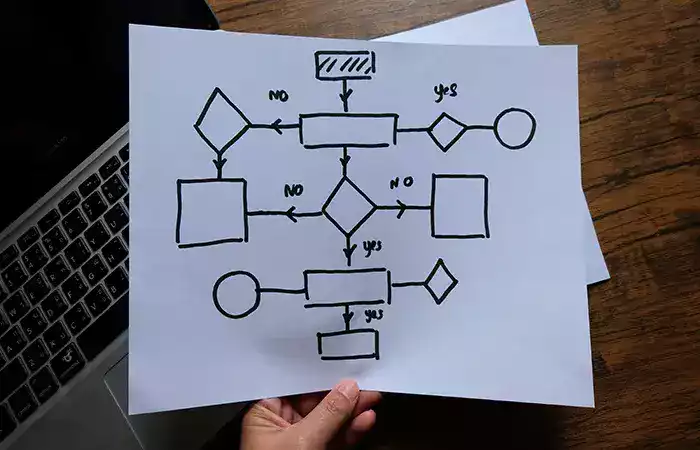
No-code automation workflows can help you connect everyday applications, organize information, and reduce repetitive work without writing programming code. With visual automation tools, beginners can create useful processes for email, spreadsheets, forms, task management, and notifications.
For example, when someone submits a contact form, a workflow might create a task for your team and send an acknowledgment. Instead of manually transferring the information between applications, the connected tools perform selected steps according to rules you configure.
However, automation is not always effortless or risk-free. Workflows need clear instructions, appropriate permissions, testing, and ongoing monitoring.
This guide explains how no-code automation workflows operate, compares popular tools, and provides six practical examples you can adapt to your own needs.
What Are No-Code Automation Workflows?
No-code automation workflows are sequences of actions created through visual software interfaces rather than traditional programming.
These workflows connect applications and respond to events based on conditions you define.
A simple workflow follows this pattern:
Trigger → Action → Result
For example:
- Trigger: A new response arrives in an online form.
- Action: Create a task in a project management application.
- Result: The appropriate team member can review the inquiry.
Some workflows also include conditions, delays, branching paths, and multiple actions.
For an introduction to the broader concept, read what automation is and how it simplifies everyday tasks.
How Do No-Code Automation Workflows Work?
Most automation platforms use a few common building blocks.
1. Triggers
A trigger is the event that starts the workflow.
Examples include receiving an email, adding a spreadsheet row, submitting a form, or creating a calendar event.
2. Actions
An action is the task performed after a trigger occurs.
Examples include creating a task, sending a notification, updating a record, or copying a file.
3. Conditions
Conditions determine whether a particular action should run.
For example, a workflow might create a high-priority task only when a form submission contains an approved urgency category.
4. Data Mapping
Data mapping connects information from one application to fields in another.
For example, the email address entered in a form can be mapped to an email field in a customer management system.
5. Testing and Monitoring
Testing verifies whether the workflow behaves as expected. Monitoring helps detect failures, duplicate records, or changes in connected applications.
These elements apply to both simple and more advanced automations.
Benefits and Limitations of No-Code Automation
No-code tools can simplify routine activities, but the benefits depend on the process being automated.
Potential Benefits
- Reduce repetitive copying and data entry.
- Improve consistency in routine workflows.
- Connect supported applications.
- Create reminders and notifications.
- Organize information across systems.
- Allow non-programmers to experiment with simple automation.
Important Limitations
- Some integrations require paid plans.
- Application permissions may expose sensitive data.
- Incorrect rules can create duplicate or inaccurate records.
- Changes to connected applications may interrupt workflows.
- Advanced automation can still require technical troubleshooting.
- Some actions may delete or overwrite information.
The objective is not to automate everything. It is to identify predictable tasks where automation offers a clear benefit.
Popular No-Code Automation Tools for Beginners
Several platforms provide visual workflow builders. Their capabilities, pricing, and available integrations change over time.
| Tool | General Strength | Beginner Consideration |
|---|---|---|
| Zapier | Connecting many business applications | Visual setup for common workflows |
| Make | Visual scenarios with multiple steps | Useful for understanding data flow |
| IFTTT | Simple event-based app connections | Accessible for basic personal automations |
| Microsoft Power Automate | Workflows within Microsoft environments | Useful for supported Microsoft services |
| Native application features | Rules already included in software | Often the simplest starting point |
Before choosing a tool, check its current pricing, usage limits, available integrations, data handling practices, and required permissions. For setup details, consult the official Zapier Help Center and Make Help Center rather than relying on outdated screenshots or third-party instructions.
For additional options, see our guide to AI tools for beginners.
6 Practical No-Code Automation Workflow Examples
The following examples illustrate common automation patterns. Exact setup steps depend on the tools and integrations available to your account.
Example 1: Organize Email Attachments Automatically
Suppose you regularly receive non-sensitive project documents by email and want to organize them in a cloud folder.
Workflow Structure
- Trigger: A new message with an attachment arrives in a selected email folder.
- Condition: The message matches an approved sender or category.
- Action: Copy the attachment to a designated cloud folder.
How to Build It
- Create a dedicated folder or label in your email application.
- Choose an automation platform that supports your email and cloud storage services.
- Connect the required accounts using appropriate permissions.
- Configure the trigger for the selected folder.
- Map the attachment to the destination folder.
- Test the workflow using a non-sensitive sample file.
- Confirm that filenames, permissions, and file contents remain correct.
Do not automatically transfer confidential attachments into shared storage without appropriate authorization.
For related inbox features, read seven simple ways to automate your emails.
Example 2: Send a Confirmation After a Form Submission
A website owner may want to acknowledge an inquiry after a visitor submits a contact form.
Workflow Structure
- Trigger: A new form submission is received.
- Action: Send an acknowledgment to the address provided.
- Optional action: Create a task for a team member to review the inquiry.
How to Build It
- Choose a form application that supports the required integration.
- Prepare a short acknowledgment template.
- Connect the form to an authorized email service.
- Map the submitted email address to the recipient field.
- Test the process with a sample submission.
- Check that the confirmation is delivered only once.
Example Confirmation
Thank you for your message. We have received your inquiry and will review the information provided. If additional details are needed, we will contact you through this email address.
Do not treat a contact form submission as automatic consent for unrelated promotional emails.
Example 3: Create Tasks From Important Emails
Some messages require follow-up actions that are easier to manage in a task application.
Workflow Structure
- Trigger: An email receives a selected label or category.
- Action: Create a task in a supported project management tool.
- Optional action: Include a reference to the original message.
How to Build It
- Create a label such as “Action Required.”
- Connect your email application to a compatible task manager.
- Choose the label as the trigger.
- Map the subject and other permitted information to task fields.
- Test with a sample message.
- Verify that duplicate tasks are not created unnecessarily.
Use discretion when transferring email content into shared project management systems.
Example 4: Copy Selected Spreadsheet Data
Businesses often maintain information in spreadsheets for different purposes.
A no-code workflow can transfer approved fields from one sheet to another when a new record is added.
Workflow Structure
- Trigger: A new row appears in a source spreadsheet.
- Condition: The row meets selected criteria.
- Action: Create a corresponding row in another spreadsheet.
How to Build It
- Identify the source and destination spreadsheets.
- Decide which columns are necessary.
- Connect the spreadsheet applications.
- Map each source column to the correct destination field.
- Test using sample data.
- Check formatting, duplicates, and missing values.
Be careful with personally identifiable information. Transfer only the fields needed for the intended purpose.
For related applications, explore how to use Google tools for productivity.
Example 5: Send Team Notifications for Important Events
A notification workflow can alert a team when an approved event occurs.
Workflow Structure
- Trigger: A new support request or other relevant event is recorded.
- Condition: The event meets notification criteria.
- Action: Send a message to an authorized communication channel.
How to Build It
- Identify the event that requires attention.
- Choose the destination channel.
- Configure the integration between the applications.
- Include only the information the team needs.
- Test with a sample event.
- Review whether the notification reaches the correct people.
Too many notifications can become distracting. Configure alerts only for events that require attention.
Example 6: Create File Copies for an Organized Archive
A workflow can copy selected files into another folder or storage location when they are created.
This can be useful for organizing approved documents or maintaining a secondary working archive.
Workflow Structure
- Trigger: A new file appears in a selected folder.
- Action: Copy the file to another approved location.
- Optional action: Record the operation in a log.
How to Build It
- Choose the source folder.
- Select an authorized destination.
- Configure the file creation trigger.
- Map the file and filename to the destination.
- Test with a sample document.
- Verify the copied file can be opened.
- Check how the workflow handles duplicate filenames.
Important: File copying is not necessarily a complete backup strategy. A reliable backup system should consider version history, retention, access controls, recovery testing, and protection against accidental deletion or corruption.
How to Build Your First No-Code Automation Workflow
Beginners should start with one low-risk process rather than a complex chain of actions.
Step 1: Identify a Repetitive Task
Choose a task that occurs regularly and follows predictable rules.
For example, you might want to create a task whenever you manually label an email for follow-up.
Step 2: Define the Trigger
Write down the exact event that should start the process.
A clear trigger reduces accidental execution.
Step 3: Define the Action
Decide what the system should do after the trigger occurs.
Start with one action. Additional steps can be introduced after the basic workflow works reliably.
Step 4: Choose a Suitable Tool
Compare available integrations, pricing, permissions, and ease of use.
Use native application features when they already solve the problem.
Step 5: Connect Your Applications
Authorize only the permissions required for the workflow.
Review the access requested by third-party services before proceeding.
Step 6: Map the Data
Make sure information from the source application reaches the correct destination fields.
For example, an email subject should not accidentally be mapped to a customer’s name.
Step 7: Test With Sample Data
Run the workflow using information that is safe to use for testing.
Confirm that the intended action occurs and that no unexpected records are created. When testing no-code automation workflows, also try a missing field, a repeated trigger, and a failed connection; verify that the workflow stops safely, reports the error, and does not send duplicate messages.
Step 8: Activate and Monitor
Enable the workflow only after testing.
Review execution history and error notifications periodically.
How to Choose the Right Task for Automation
Not every activity is a good candidate for automation.
| Task Type | Automation Suitability | Reason |
|---|---|---|
| Routine notifications | Often suitable | Predictable trigger and action |
| Basic data organization | Often suitable | Clear rules and repeatable steps |
| Simple task creation | Often suitable | Limited decision-making |
| Confidential record transfers | Requires caution | Privacy and access risks |
| Financial approvals | Human oversight essential | Potentially significant consequences |
| Complex customer complaints | Limited automation | Context and judgment required |
Before automating, ask whether the task is frequent, predictable, low-risk, and worth the setup and maintenance effort.
How Much Time Can No-Code Automation Save?
Time savings vary according to the number of tasks, workflow complexity, and maintenance requirements.
Consider a hypothetical example:
- You manually transfer 15 records each week.
- Each transfer takes three minutes.
- The total manual work is 45 minutes weekly.
- An automated workflow may reduce the transfer work, but setup, review, and troubleshooting still require time.
This example illustrates how to evaluate a workflow. It is not a guarantee of savings.
For additional examples, read seven ways to automate repetitive tasks.
Common No-Code Automation Mistakes to Avoid
Automating a Process You Do Not Understand
Document the manual process before creating the automation. Otherwise, you may reproduce existing mistakes more quickly.
Granting Excessive Permissions
Review connected application access and use the minimum permissions necessary. Prefer dedicated accounts where appropriate, remove unused integrations, and review access again whenever a no-code automation workflow begins handling additional data.
Skipping Tests
Test triggers, actions, conditions, and error handling before activating a workflow.
Ignoring Duplicate Records
Some workflows can run more than once for the same event. Consider how duplicate records should be identified and handled. For example, compare a unique form submission ID or message ID before creating a new task, and record successful runs so retries do not repeat an irreversible action.
Assuming Every Action Can Be Reversed
Some automated actions can delete, overwrite, or distribute information in ways that are difficult to undo.
Forgetting Maintenance
Connected applications, permissions, and subscription limits may change. Review important workflows regularly. Assign an owner, check execution logs and usage quotas, and retest no-code automation workflows after application updates or changes to account permissions.
Security and Privacy Best Practices
Automation platforms may access email, documents, customer records, or other sensitive information.
- Use strong account security and multi-factor authentication.
- Review integration permissions.
- Limit access to authorized users.
- Use sample data for initial testing.
- Avoid unnecessary transfers of personal information.
- Keep logs when appropriate.
- Review failed executions and unusual activity.
- Disable integrations that are no longer needed.
For more information, see how cybersecurity helps protect your data.
Can AI Improve No-Code Automation Workflows?
Some automation platforms offer AI-related features that can help classify information, summarize text, or suggest workflow steps.
However, AI-assisted decisions may be inaccurate and should be evaluated carefully.
For example, a system might summarize a non-sensitive inquiry before creating a task. A person should still review consequential decisions or sensitive information.
For a comparison of related applications, read our guide to AI assistants for productivity.
Frequently Asked Questions About No-Code Automation
What Is a No-Code Automation Workflow?
It is a sequence of actions configured through a visual interface, usually connecting applications through triggers, actions, and optional conditions.
Do I Need Programming Skills?
Not for many basic workflows. However, understanding how applications exchange information can help with troubleshooting more complex automations.
Are No-Code Automation Tools Free?
Some platforms offer free plans or trials. Limits, available integrations, and features vary, so check current provider terms.
Can I Automate Gmail and Google Sheets?
Yes, many platforms support compatible Gmail and Google Sheets workflows. Available triggers and actions depend on the integration and account permissions.
Are Automation Workflows Safe?
They can be useful when properly configured, but risks include excessive permissions, incorrect actions, data exposure, and workflow failures.
What Is the Best First Automation for Beginners?
A simple, low-risk workflow such as creating a task from a labeled email or organizing non-sensitive notifications is a practical starting point.
Conclusion
No-code automation workflows make it possible to connect applications and reduce repetitive tasks without traditional programming.
By understanding triggers, actions, conditions, and data mapping, beginners can build practical processes for email organization, form confirmations, task creation, spreadsheet updates, notifications, and file archiving.
The most important principle is to begin with a clear, low-risk task. Test each step, review permissions, monitor results, and expand only when the workflow is reliable.
Automation should support better organization and productivity while preserving appropriate human judgment. A small, carefully designed workflow can be more useful than a complicated system that is difficult to maintain.